Chapter 6. Example Query Interactions
As you become familiar with how VTAM control blocks relate to
one another, you will be able to use Query to diagnose increasingly
complex issues within VTAM.
This chapter provides samples of how you can diagnose specific
questions about a VTAM network using Query:
Determining a Session's BIND Image.
Determining an Application's Privileges.
Let's say that you want to determine the BIND image that is
being used between a particular VTAM application program (the PLU)
and a device named T010001 (the SLU).
The information that you seek is a function of an existing session.
VTAM stores this information in a Session Information Block (the SIB).
Steps:
- From the Query menu, select choice 6, 'Session information
blocks'; the following list would appear containing the SIBs:
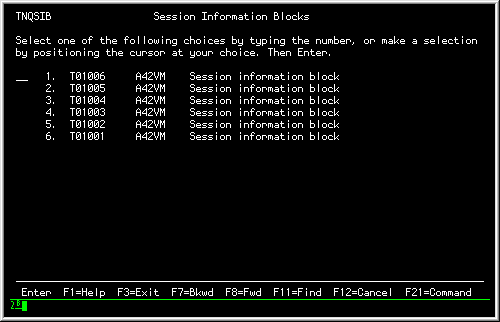 Menu of Active SIBs
|
The first and second columns list the LU names of the two session
partners. The third column indicates the type of control block.
- You would then select the SIB for T01001 (choice 6), which
generates the following display of the SIB (presuming that FORMAT
mode is in effect):
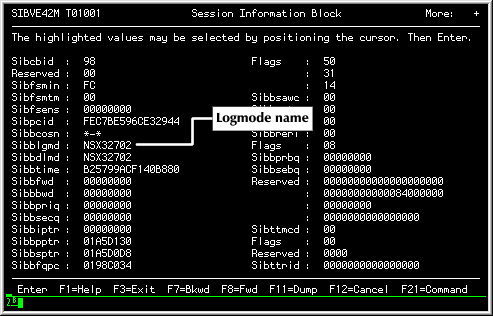 SIB Formatted Display
|
Sibbpptr and Sibbsptr contain navigational
values that point at the SIB extensions for the Logical Units in
session. The field prompt of Sibblgmd contains the logmode
name that was used for session setup.
- To produce an interpretation of the BIND image, you would move the
cursor to the Sibblgmd field value and press
Enter. Query would respond with the following BIND image display panel:
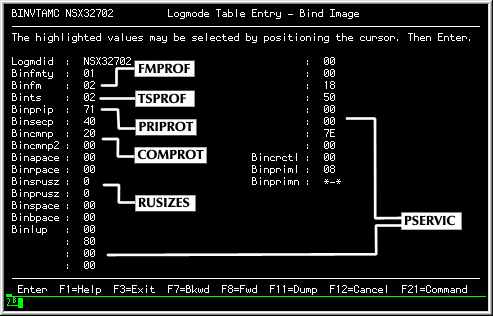 BIND Image Formatted Display
|
The values from this Query display are related to the
VTAM MODEENT macro by the identified operands (MODEENT FMPROF=
is equivalent to the Binfm panel element, etc.).
You may also interrogate the meanings of individual BIND image
supplemental fields by using the cursor
(see Viewing additional field information). For example, selecting the
BINPRIP field would cause the following pop up to
appear:
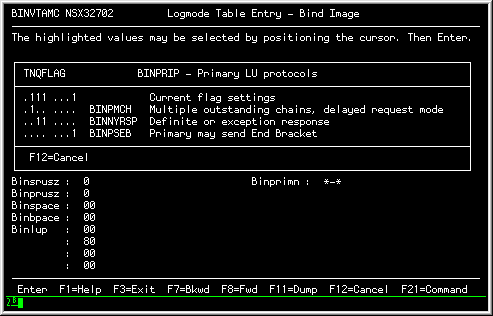 BINPRIP Supplemental Pop Up
|
The interpreted bits represent the settings that are in effect
for the selected supplemental field.
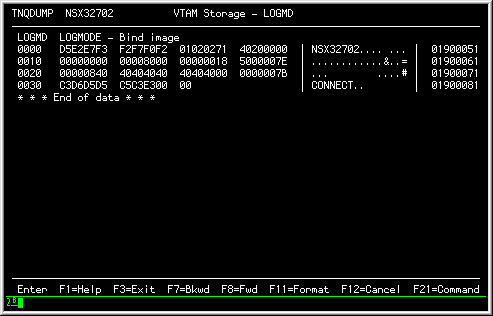
- You would then press F12 (Cancel) to return to the Logmode Table
panel and press F16 (Dump) to display the control block in hexadecimal
format:
 BIND Image DUMP
|
If you have dealt with BIND images previously, you
should recognize the BIND beginning at offset 8 in the display.
Assume that you would like to determine if a specific
application is authorized for the Secondary Program Operator
privilege (SPO).
This information is defined to VTAM in the
VTAMLST member or file associated with defining the Application, which
you can locate easily via the Resource definition table.
However, to provide a better demonstration of the connection between
VTAM control blocks, we will start from the Application Program Blocks.
Steps:
- Go to the Query Menu:
[See Opening the Query Menu for steps on accessing the Query menu.
]
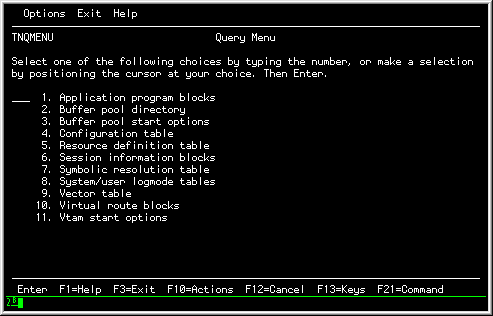 Query Menu
|
- Select choice 1, 'Application program blocks';
Query responds with a list of active data extent blocks (DEBs):
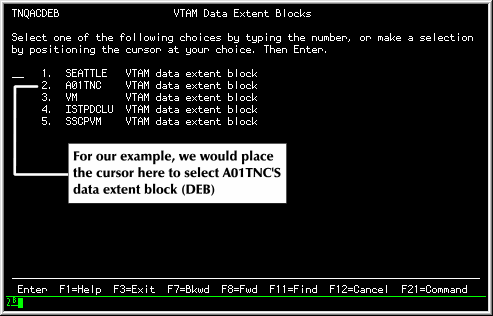 Menu of Data Extent Blocks
|
- Select the application that you are interested in viewing;
The Network Center will respond with panel TNQFMCB, which contains the
FMCB's currently associated with the DEB and the DEB itself.
For this example, you would chose the "A01TNC" data extent block:
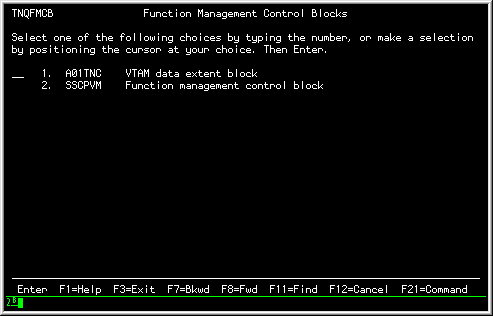 Menu of Function Management Blocks
|
- You would then select 'AO1TNC' to display the DEB fields for the
A01TNC Application (each VTAM release may have a different panelid);
the VTAM Data Extent Block panel appears:
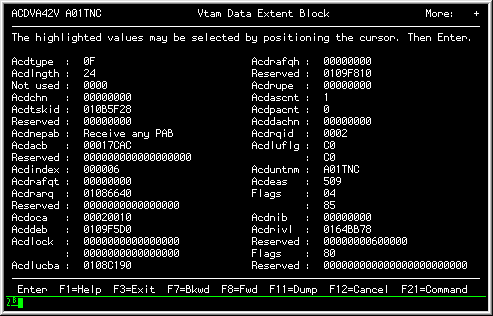 VTAM Data Extent Block for A01TNC
|
- You would now be able to look for the RDT. In this case, you would
have to move the display forward (F8) to the second page of the
output, which contains the RDT entry address:
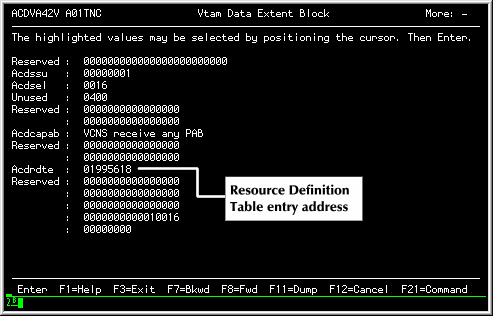 VTAM Data Extent Block Second Page
|
The Acdrdte field contains the address of the RDT
(Resource Definition Table) entry for A01TNC.
- You would then select the Acdrdte field by placing the cursor on
it and pressing Enter; Query would reposition the display to the
requested address, which happens to be the appropriate RDT entry:
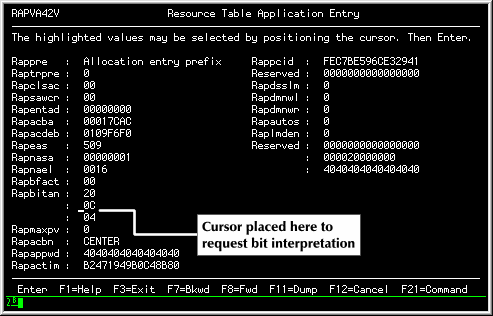 A01TNC's Resource Table Application Entry
|
- You would now move the cursor to the second byte of
the Rapbitan field and press Enter; this asks Query to
interpret the flag bits that the cursor is positioned at:
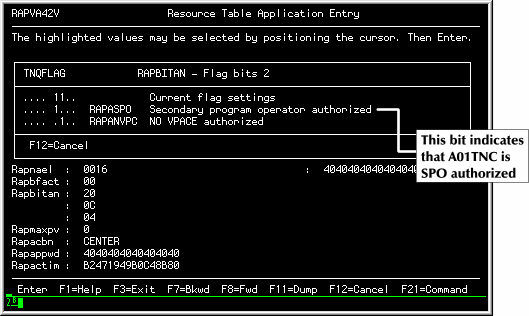 Interpreted Rapbitan Flags for A01TNC
|
The Rapbitan flags indicate that A01TNC has several characteristics
provided via the AUTH= keyword of the APPL definition. The one we are
interested in (Rapaspo) is on, which means that the application
is authorized for the Secondary Program Operator interface
(VTAM commands can be generated by the program).
Copyright © 2000 North Ridge Software, Inc.