Chapter 4. Selecting and Viewing Control Blocks
This chapter guides you in selecting and viewing the control blocks
and related VTAM information for your installation:
Opening the Query Menu guides you in starting a session with Query and
opening the Query menu.
Selecting a Control Block guides you in selecting the control block that
you wish to view.
Viewing Information in DUMP Mode guides you in viewing the control block you
selected in hexadecimal format, including how to navigate hexadecimal
panels.
Viewing Information in FORMAT Mode guides you in viewing the control block you
selected in format mode, including how to use the Navigation and
Supplemental fields.
Note: The examples provided in this chapter address the panel sequence
and types of information that you can expect from Query, but they do
not represent the exact displays that you will receive at your
installation. (The panel's are extracted from an operational VTAM 4.2
system operating on a VM/ESA system and are specific to a
demonstration VTAM environment).
Note: If you want to format your panels so that they match the format
in our example panels, turn off the command line (F21) and turn on
the panel id (F24). (Both keys toggle between "on" and "off".
To reinstate or hide either, simply press the key again.)
The Query Menu provides the base for all Query. sessions. Each menu
choice produces displays of various control blocks and VTAM related
information.
- To open the Query Menu, you first need to log on to your
teleprocessing system and start the Network Center:
- For TSO, enter the TNCENTER CLIST command
- For CMS, enter the TNCENTER command
The Network Center Logo panel appears:
[If the Logo panel does not appear, the Network Administrator has probably turned
the display option "off" (this will not effect the operation of
the Network Center). For more information on the Logo panel's display option
see the User's Guide.
]
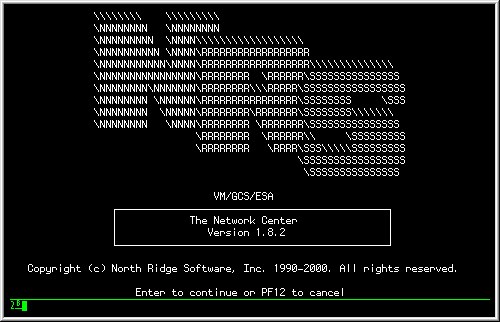 Network Center LOGO panel
|
- Press Enter to clear the logo panel and open the main Network Center Menu
(TNCMENU):
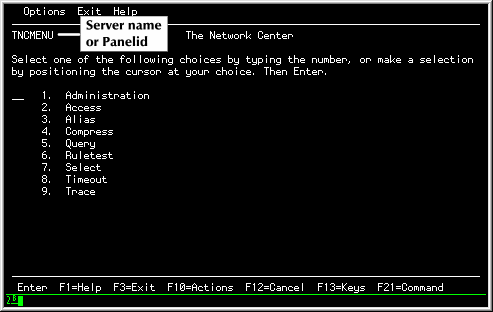 The Network Center Menu Panel (TNCMENU)
|
- You may now open the Query Menu panel: Place the
cursor on the 'Query' choice, and press Enter; the Query. Menu panel
appears:
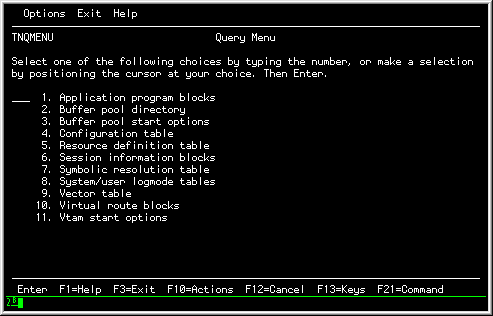 Query Menu (TNQMENU)
|
You may now select from the menu choices to continue with Query
operations.
Note: For descriptions of each menu choice, see Chapter 7. Query Menu Choices.
Note: For an example of how to select a control block,
see Selecting a Control Block.
Note: For information on the various display options,
see Viewing Information in DUMP Mode and Viewing Information in FORMAT Mode.
As mentioned in Opening the Query Menu, each choice in the Query Menu
contains viewing access to one or more VTAM control blocks or related
information. This section discusses standard techniques for locating a
control block.
Note: You can also select or request control blocks using the FIND and
QUERY actions. See FIND: Locating a menu list item and QUERY: Requesting a control block for
more information.
Note: Each Query menu choice provides access to one or more control
blocks or information related to a control block.
See Chapter 7. Query Menu Choices for more information.
Steps:
- From the main Query Menu panel (TNQMENU), select the menu choice
for the control block or related information that you wish to view.
If you do not know which menu choice the control block or related
information is available from, you can use several methods to locate it:
- See the menu choice description in the online help: place
the cursor on the menu choice, and press F1; a help panel
describing the menu choice and it's contents appears.
[For more information on using the online help, see the
User's Guide.
]
- See the Menu Overview on The Query Menu. (It lists the
control blocks available for each menu choice.)
- Issue a QUERY command to display the control block. This will
take you directly to the requested control block.
See QUERY: Requesting a control block for more information.
For example, let's say that you wish to display the
VTAM Data Extent Block for
VM. You would reference the Menu Overview (The Query Menu), and
see that Data Extent blocks are available from choice 1, 'Application
Program Blocks'. You would then select choice 1; the
following panel would appear:
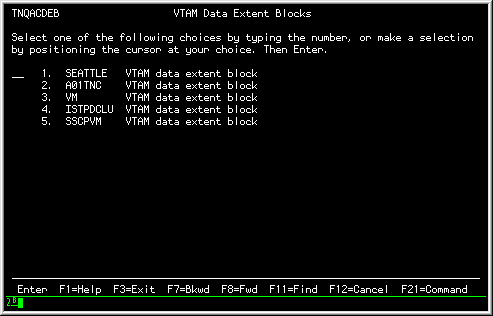 Example panel (TNQACDEB)
|
When you select a menu choice, you will either receive a list
of choices or a direct display of the control block.
If you receive a list, you may select from the choices
to view additional information.
Note: To scroll through a list or information, use the F7 (Forward) or
F8 (Backward) actions.
- To continue our example, you would then
select the VM control block; the following panel would appear:
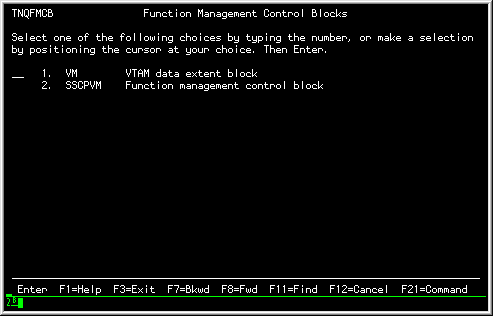 FMCB Menu Panel
|
- You wish to view the VTAM data extent block, so you select choice 1;
the following display would appear (assuming that the panels are in
FORMAT mode):
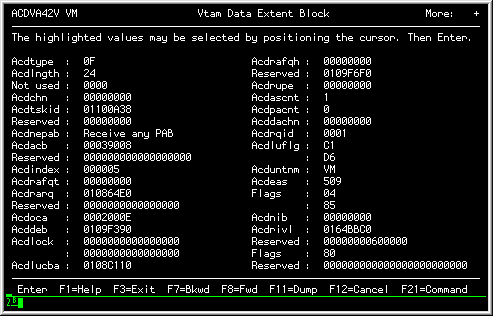 Example panel, Vtam Data Extent Block
|
Note: Use the F11 (Dump/Format) action to toggle between
hexadecimal and formatted views of the control block.
Note: Some control blocks can not be viewed in FORMAT mode. For
more information, see Control blocks eligible for the FORMAT command.
Note: See Viewing Information in DUMP Mode and Viewing Information in FORMAT Mode for
tips and information on using the DUMP and FORMAT modes.
- After viewing the desired information, you can return to the
previous panel by using the F12 (Cancel) action. To return
directly to the Query Menu panel, use the F3 (Exit) action.
DUMP mode panels provide a hexadecimal display of control blocks or
control block-related information.
This section guides you in invoking and viewing control blocks and
related information in DUMP mode.
To switch from FORMAT mode to DUMP mode, use the F11 (Dump/Format)
action. You can also enter "DUMP" in the command area.
Note: Use the F21 (Command) action to display or hide the command area.
The following figure shows an example of a control block in DUMP
mode:
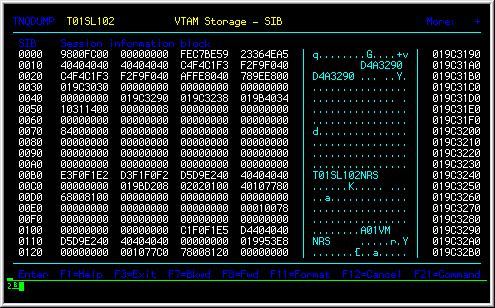 Example DUMP mode panel
|
Once you are in DUMP mode, you can cause the panel to start
at a new location by selecting the offset areas of addresses, which are
demonstrated in the following figure:
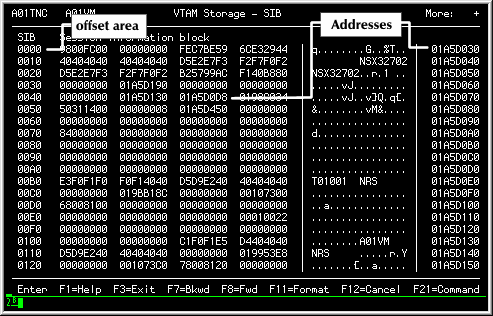 Cursor Usage in DUMP Mode
|
The following list suggests several techniques for selecting
the offset areas or addresses:
- Move the cursor to any offset in the offset column, and press
Enter. The hexadecimal display will restart beginning with the offset
that you indicated (an abbreviated FORWARD action will have been
performed).
- Move the cursor to any portion of the panel body that contains an
address and press Enter (this includes the addresses on the right side
of the panel that represent the virtual address of the control block
itself. Query will restart the display with the address at the cursor
location. If the address is invalid within VTAM, Query will issue
error message TNC0042C "The Network Center Server unable to service request, recovery
successful",
which indicates that the request cannot be serviced.
- Use a light pen to select the offsets and addresses included in
Query DUMP format panels. Simply press the light pen on the address or
offset that you would like to restart the display with.
- Restart the panel to a specific location by moving
the cursor to the location and pressing the "cursor select" key.
- Use the Query command to
increase or decrease the display. Use the following format:
where "QUERY" is the command prefix (you can
abbreviate it as a "Q"); the "+" sign indicates that the
display be incremented; the "-" sign indicates that the display
should be decreased; and "displacement" is the hexadecimal value
for how much it should be increased or decreased by.
For example, to increment the display by X'1AC', you would enter:
After entering the Query command, the next Query. hexadecimal display
will begin with the computed address (the displacement added or
subtracted to the current hexadecimal address).
Note: The QUERY command also allows you to request Control Blocks and
several other related actions. See QUERY: Requesting a control block for more
information.
FORMAT mode panels provide an interpreted view of control blocks.
This section guides you in invoking and
viewing control blocks in FORMAT mode.
Note: See Control blocks eligible for the FORMAT command for a list of control blocks that
may be viewed in FORMAT mode.
To switch from DUMP mode to FORMAT mode, use the F11 (Dump/Format)
action. You can also enter "FORMAT" in the command area.
Note: Use the F21 (Command) action to hide or display the command line.
The following figure shows a control block in FORMAT mode:
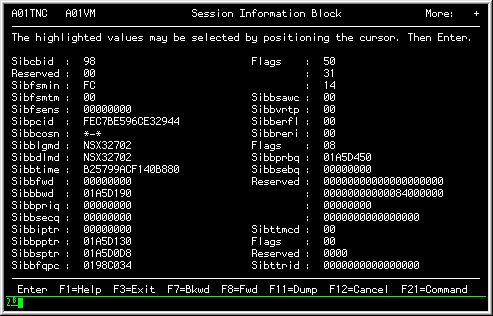 Example FORMAT mode panel
|
When Query is in FORMAT mode, it displays the contents of a specific
control block on a field-by-field basis. These fields consist of
EBCDIC, numeric, or hexadecimal data. Hexadecimal data fields may
contain indicators, flag byte bit settings, or may be an address pointer
to another location in the control block chain or VTAM address area.
Selection Fields are fields that contain additional information.
They can be either navigational or supplemental: Navigation fields
appear white or high intensity; Supplemental fields appear yellow or
high intensity.
Note: See Control blocks eligible for the FORMAT command
usage.
Note: See Field Values for more information on the different
types of FORMAT fields, including Navigation and Supplemental.
You can select a Selection Field to view additional information.
Steps:
- Move the cursor to the Select Field
(the field prompt, leader dots, or value itself) and press Enter;
a pop up window appears displaying the additional information.
For example, in the following figure, we selected the
Sibfsmin field, which produced a pop up window containing
supplemental information that describes the field:
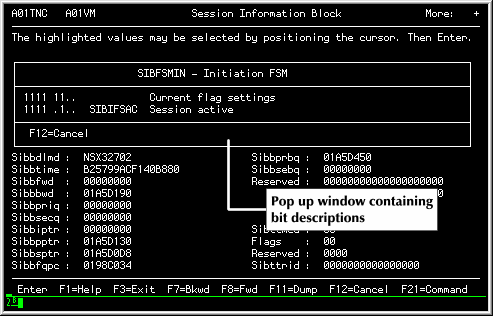 Supplemental Field Selection
|
The type of information you are presented with will depend on the
field that you have selected. Some pop up windows, in turn,
may also contain selection fields, which you can select to display
additional information. Other Selection Fields may present you with
additional control blocks or control block-related information in
DUMP or FORMAT mode panels.
- To cancel pop up window(s) or panels use the F12 (Cancel) action.
Copyright © 2000 North Ridge Software, Inc.