Common Dialog Actions allow you to perform various activities in Query:
Common Dialog Action Overview provides a brief description of the actions described in this chapter.
The actions are described individually as follows:
DUMP: Displaying a control block in hexadecimal format.
FIND: Locating a menu list item.
FORMAT: Displaying a Control Block in interpreted format
QUERY: Requesting a control block.
VTAM Operator Commands: VARY, DISPLAY, MODIFY, and REPLY.
Note: The Common Dialog Actions discussed in this chapter are in addition to the actions discussed in the User's Guide (TNC-0002).
The following table provides a brief overview of each Query action's purpose:
| Action | Usage |
| DUMP | causes Query to produce detailed control block displays in the panel body in a hexadecimal format |
| FIND | allows the Query terminal user to position to a specific control block within a displayed list by specifying the control block name or pattern matching string |
| FORMAT | causes Query to produce detailed control block displays in the panel body in an interpreted format (when available) |
| QUERY | a Command prompt action requesting Query operations via a keyword syntax |
| VTAM | issue a VTAM operator command |
|
|
Note: The remainder of this chapter describes each of the actions in detail.
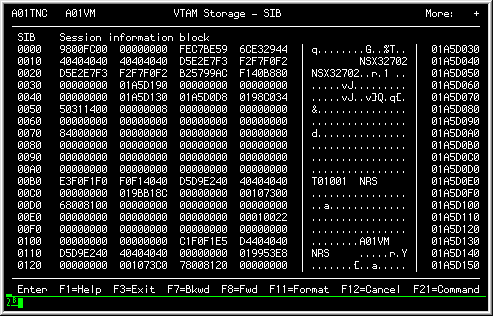
Use the DUMP action (F11) to display panels containing a control block in a hexadecimal format. You can then evaluate the panel's specific field settings and use the cursor and/or QUERY command to access other control blocks or areas.
The following SIB panel demonstrates the DUMP format:
|
|
Note: All of the virtual addresses displayed in the panel area are within the VTAM address space or virtual machine; they are not within the teleprocessing system hosting the Network Center Interface.
Note: For information on using panels in DUMP mode, see Viewing Information in DUMP Mode for more information.
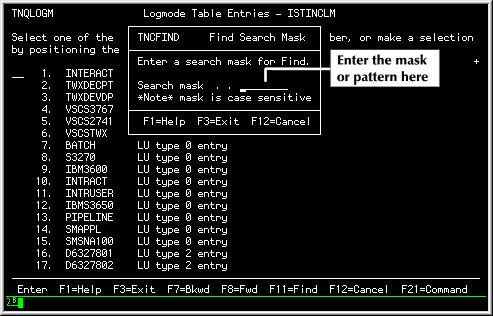
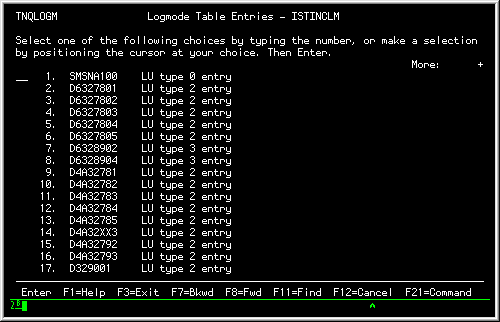
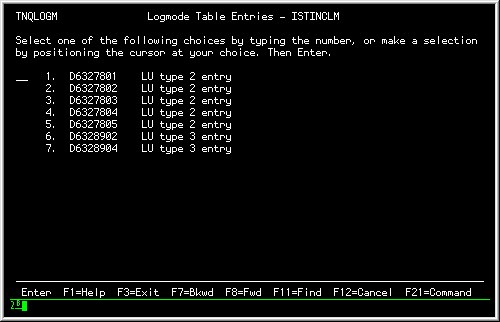
When you are displaying a list of menu items, you can use the FIND action (F11) to request that a list should start with a particular list value or to display particular list values only.
Note: This function is usually available when you are displaying a list of control blocks; it is not available from the information (DUMP or FORMAT) panels.
Steps:
|
|
|
You may use the following pattern matching characters to create search masks:
|
The following figure demonstrates the pattern characters ability to mask values. The first row gives example field entries, the column gives possible pattern strings. The coordinates indicate whether the pattern string is valid (YES) or invalid (NO):
| Pattern | AB21HD00 | AB31 | SYS140 | SSCP1
| *
| YES
| YES
| YES
| YES
| *1
| NO
| YES
| NO
| YES
| *1*
| YES
| YES
| YES
| YES
| *HD*
| YES
| NO
| NO
| NO
| AB%1
| NO
| YES
| NO
| NO
| AB%1*
| YES
| YES
| NO
| NO
| %%%1*
| YES
| YES
| YES
| NO
| %%%%1*
| NO
| NO
| NO
| YES
| |
Use the F11 (Format) action to display a particular control block in an interpreted format.
Query will display the individual control block titles as the "field prompt" and the field contents as the panel "field value" :Note.See Field prompts and Field Values for more information on these panel elements.
The following SIB demonstrates the FORMAT mode panel style:
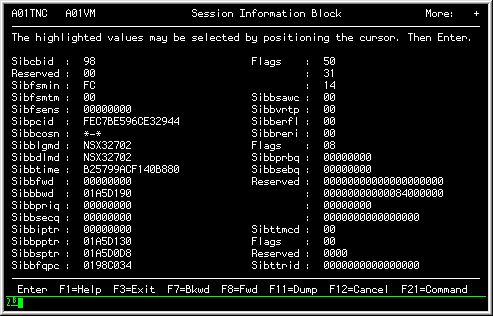
|
FORMAT panels may also contain "selection fields" that display additional information (see Selection fields: Navigation and Supplemental for more information).
For example, when you select a supplemental field, Query presents a pop up window containing information that describes the field in detail. This pop up may, in turn, may also contain select fields that produce additional pop ups. To cancel the pop up windows, use the F12 (Cancel) action (they will be removed in the reverse order that they appeared).
In the following example, we selected the 'Sibfsmin' field:
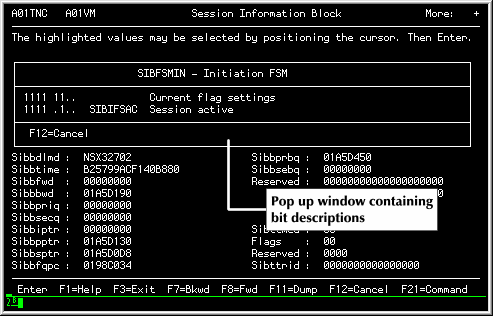
|
You can format the following control blocks:
|
You can use the QUERY action to make direct requests for control blocks. Simply enter "QUERY" in the command area (use the F21 (Command) action to activate the command area), followed by the operand value for the control block that you wish to view.
For example, you could enter the following QUERY action to request the ATCVT control block:
QUERY ATCVT |
Note: To activate the command area, use the F21 (Command) action. This command toggles between "on" and "off". To reinstate or hide the command area, simply press the F21 key again.
Note: You can also use the QUERY action in DUMP mode to move the panel display to a different location in the control block. See Restarting the Panel at a different location for more information.
The following operands are valid for the QUERY action:
You can also use a keyword operand with the QUERY action operand, with the exception of ABB, ABC, ABT, ABX, ABY, MENU, SDWA, QRB, PCB, and addresses.
Use the keyword to tell Query where to begin the resulting menu panel. For example, the following QUERY action would request that the display begin at the Logmode named "NSX32702", if present in the table:
QUERY LOGMODE=NSX32702 |
The following actions can be interchanged with the QUERY action:
You may use any one of these synonyms whenever this publication refers to the QUERY action: the results will be the same.
This section describes several of the control blocks and related information available from the QUERY action in greater detail.
The Network Center's Anchor Blocks (ABC) represent information that is retained across Network Center restarts for the individual Components.
The Anchor Blocks are most useful when working with NRS Technical Support and will appear similar to the following figure:
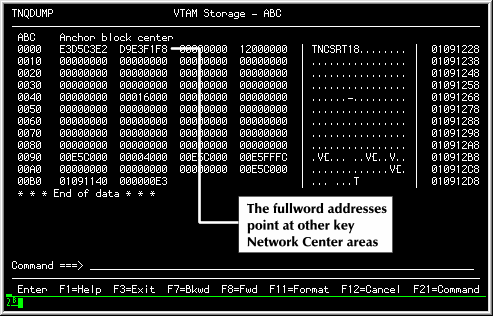
|
You can manipulate the hexadecimal display using all standard Query functions.
Note: See Restarting the Panel at a different location to see the available Anchor Block operands.
Note: You can use the RESET command to force the Network Center to reinitialize these areas. See the Installation and Operations publication for more information.
The Network Center Interface determines the capabilities of the device it is connected to by issuing a Write Structured Field "Read Partition Query" command. The response to this command is stored and is then tested, as needed, by the Network Center Interface to determine terminal characteristics.
You can issue the Query QRB command to view the contents of the response to the Read Partition Query in hexadecimal format. It will appear similar to the following figure:
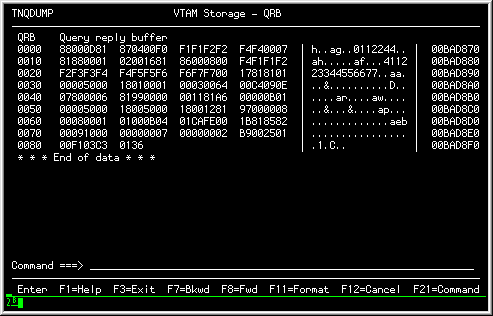
|
Note: You should interpret the contents of the buffer as described in the applicable IBM Device publications. [See the 3270 Data Stream Programmer's Reference, IBM document number GA23-0059. ]
This function has been added to facilitate NRS Technical Support debugging. It is very useful if you are attempting to identify why a specific device does not display multiple colors, support the alternate character set, etc.
If your installation uses the Timeout Component, you may also use Query to interrogate the contents of the Timeout Session Descriptor Table and Session Descriptor Element for each session that is being monitored by Timeout. The following figure shows the basic command syntax:
QUERY SDE=(sluname,pluname) |
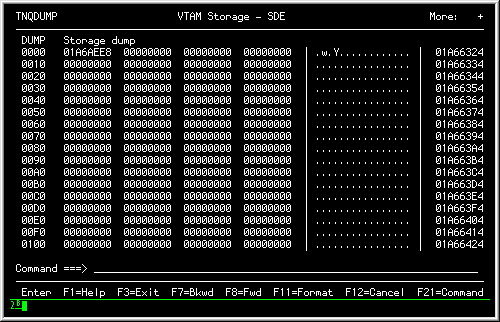
This command requests that Query locate the entry (if present) in the Session Descriptor Table (SDT) for the identified session and display the associated portion of storage in hexadecimal. You can then select the Session Descriptor Element (SDE) for the session by moving the cursor to the first fullword in storage (displayed as offset 0000) and pressing enter.
The following figure shows an example QUERY SDE response:
|
Note: Interrogation of the SDE is NOT required for Timeout to operate properly. The QUERY SDE command is provided so that you may obtain additional detailed information about the Timeout monitor.
The VTAM command allows the terminal operator to issue VTAM operator commands from The Network Center's Command line. The VTAM command accepts any valid VTAM command that can be issued via the VTAM Program Operator interface. These include the VARY, DISPLAY, MODIFY, and REPLY commands (as identified in the VTAM Programming manual under the section that deals with the SENDCMD function).
The following figure shows the basic VTAM command syntax:
VTAM {vtam command}
|
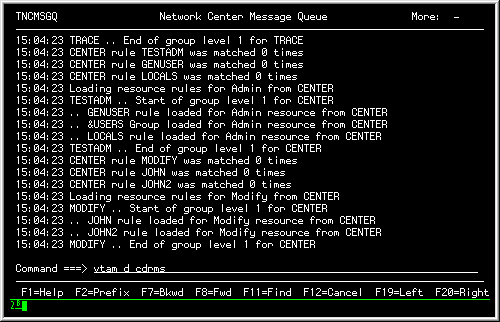
The responses to the command are displayed by The Network Center in the Message Queue in an asynchronous manner. Depending on the speed of VTAM's response to the command, you may have to issue Message Queue placement commands (i.e. Bottom) to view the complete response. The following figure shows an example Query Display command entered in the command area:
|
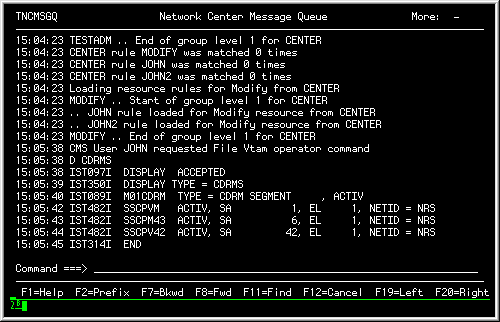
The following figure shows the results of the command:
|
Note: For information on using the Message Queue, see the Installation and Operations publication (TNC-0003).