Query makes extensive use of the CUA principles documented in the User's Guide (TNC-0002). However, Query also includes several additional mechanisms that extend the functionality of the panels. This chapter discusses these mechanisms, which include field prompts, field values, and special color usage:
The Query Menu discusses each menu choice, including which control blocks are accessible from each menu choice.
Format Mode Panels describes the various fields and information that are available from FORMAT mode panels, including field prompts, and navigational and supplemental fields.
Dump Mode Panels briefly introduces DUMP mode panels.
Color Usage summarizes color coding for the various fields in Query panels.
The Alias Menu (TNQMENU) provides the base for all Query operations. Each menu choice either directly provides access to a control block or related information, or produces one or more lists that provide access to control blocks or related information:
|
Note: See Chapter 3. Control Block Overview for information on how the various control blocks relate to one another.
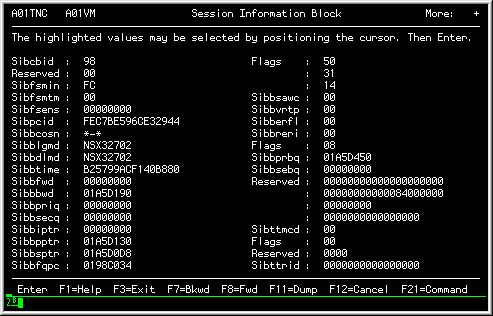
Panels in FORMAT mode contain several special fields, as well as standard field prompts and values. The following figure shows a Session Information Block (SIB) in format mode:
|
|
Format mode panels consist of standard CUA field prompts and field values, which are described in Field prompts and Field Values.
Note: To invoke a panel into FORMAT mode, use the F11 (Format/Dump) action, or enter the FORMAT command in the command area.
Note: For tips and techniques on viewing FORMAT mode panels, see Viewing Information in FORMAT Mode.
The origin for the field prompts is the actual VTAM control block description. You can think of them as the Assembler labels for the DSECT that would be used to map the control block, if you were producing an Assembler program that would manipulate the control block.
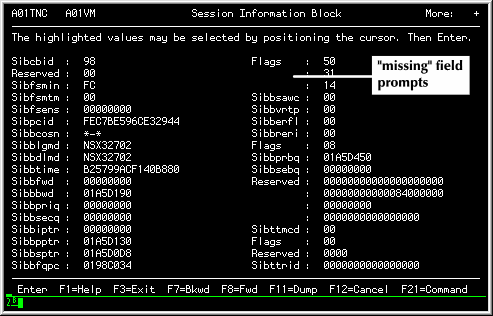
At times, a field prompt may be missing or "blank". This indicates that the currently displayed field is a continuation of the previously displayed field. The previously displayed field prompt (DSECT tag) continues to apply. The following figure shows a "blank" field prompt:
|
Each field prompt points to one or more of the following field values:
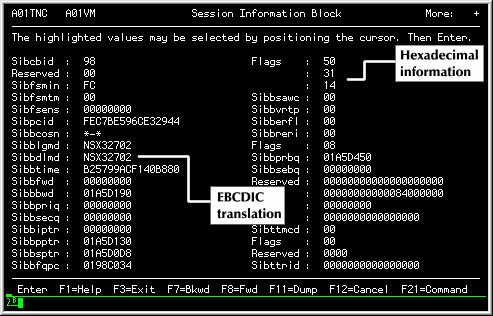
Query displays control block lengths and identifiable "counter" type fields in FORMAT mode as decimal values. Other numeric fields are displayed in their corresponding hexadecimal format. Alphanumeric fields are displayed with the appropriate translation to EBCDIC completed.
The following figure points out some examples of these fields:
|
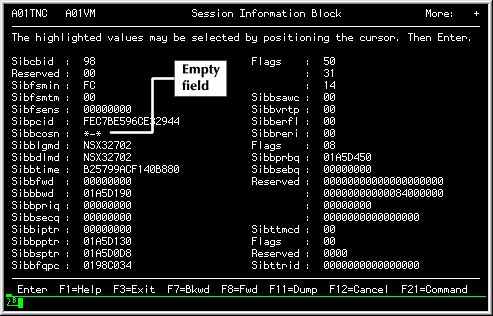
When a control block is in FORMAT mode, any "empty" field is displayed as the literal string "*-*", as shown in the following figure:
|
Empty fields do not have a value.
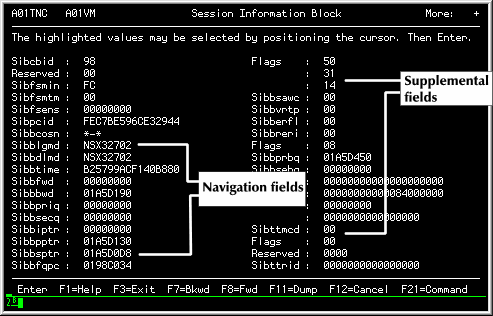
Selection fields provide access to control blocks and information that is external to the control block or information that you are currently viewing. Select fields include Navigation and Supplemental fields, as shown in the following figure.
|
Note: Navigation and Supplemental fields are discussed in further detail in the following sections.
Navigation fields appear white when a control block is in FORMAT mode, and indicate that the displayed control block relates externally to another control block, buffer, or chain element. Common navigation fields include control block chain pointers and logmode names.
You can select a navigation field to view the additional information. For example, let's say you are viewing the Buffer Pool Control Block for a Buffer Pool Entry named 'XD00':
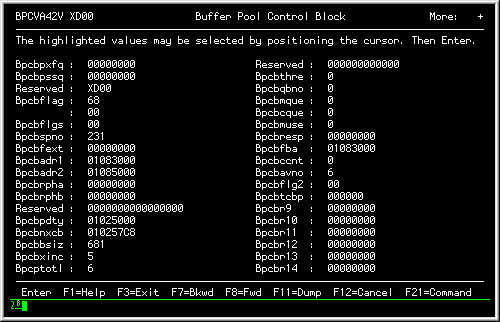
|
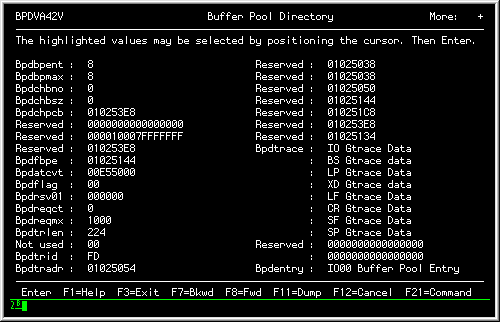
You then decide to view the Buffer Pool Directory, so you select the navigation field named 'Bpcbpdty', which opens the Buffer Pool Directory:
|
Supplemental fields appear yellow when a control block is in FORMAT mode, indicating that Query can provide additional information. Supplemental fields represent internal information within the currently displayed control block.
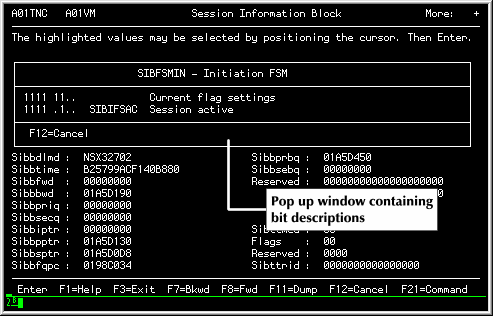
Selecting a supplemental field produces a pop up window that provides the additional information. Typically, the field provides the interpretation of the bit meanings with a flag byte. Other supplemental fields include time stamps and RU sizes.
The following example shows the results of selecting a selection field:
|
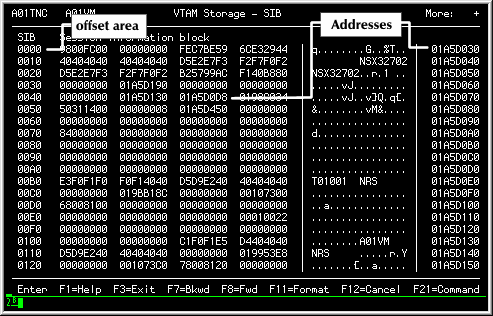
Dump mode panels display a control block or related information in hexadecimal format. Dump mode panels consist of fields and addresses, and can be restarted at a different location using the cursor or the Query command.
The following figure shows a Session Information Block (SIB) in DUMP mode:
|
Note: See Viewing Information in DUMP Mode or DUMP: Displaying a control block in hexadecimal format for more information.
You can use the colors displayed by Query to discern between different types of fields and values.
The following table summarizes field color meanings in Query panels: [the color usage is in addition to basic Network Center color handling, which is described in the User's Guide (TNC-0002). ]
| Panel Element | Color Devices | Monochrome Devices |
| Navigation fields | White | High intensity |
| Supplemental fields | Yellow | High intensity |
| Control block field value | Blue | Normal intensity |
|
|
Note: If your device does not support 3270 color definitions, you may want to ensure that fields are interpreted correctly to monochrome: Select the "Options" action bar choice at the top left corner of the Query Menu panel, and enter "monochrome" in the 'Panel colors' field. Use the "Monochrome Devices" column in the figure above to determine the significance of the panel elements.